Installing UMP-SP Multitenant
The UMP-SP installation must be run by the Windows UMP Service account.
|
●
|
The details of the UMP Service account are displayed in the UMP Service Settings screen (see UMP Service Settings). |
|
●
|
The installation runs Windows PowerShell 7 (with .net 8). Once you have completed the installation and rebooted the server, continue PowerShell operations as administrator using PowerShell 7. |
|
1.
|
Login with the UMP Service account credentials. |
|
3.
|
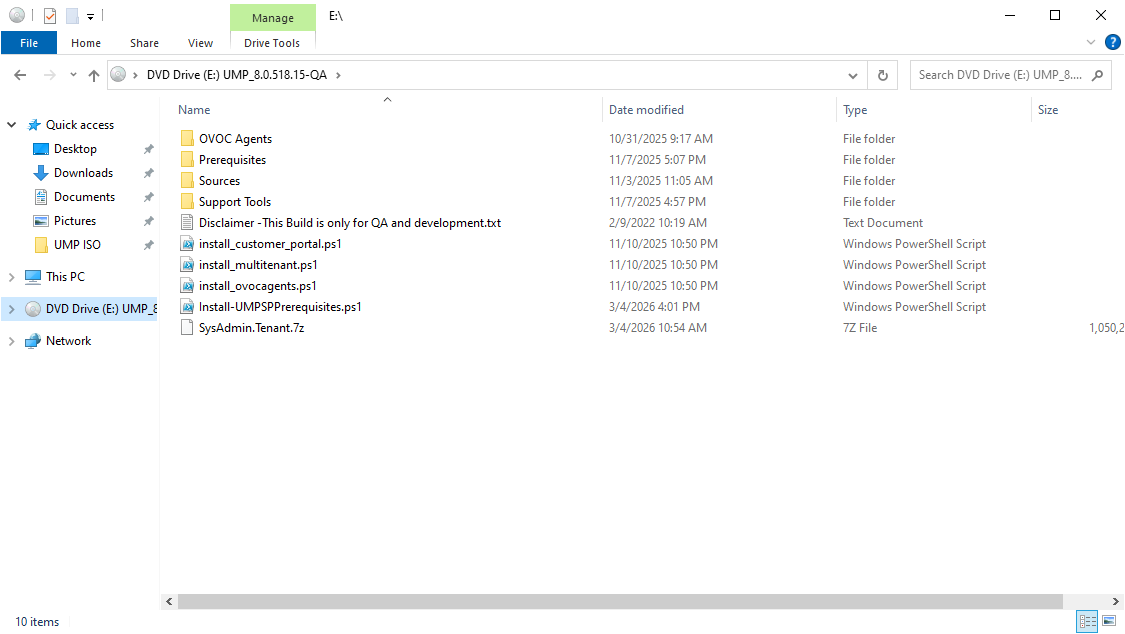
Open the iso partition path (example d:\) where you saved the installation files. |
|
4.
|
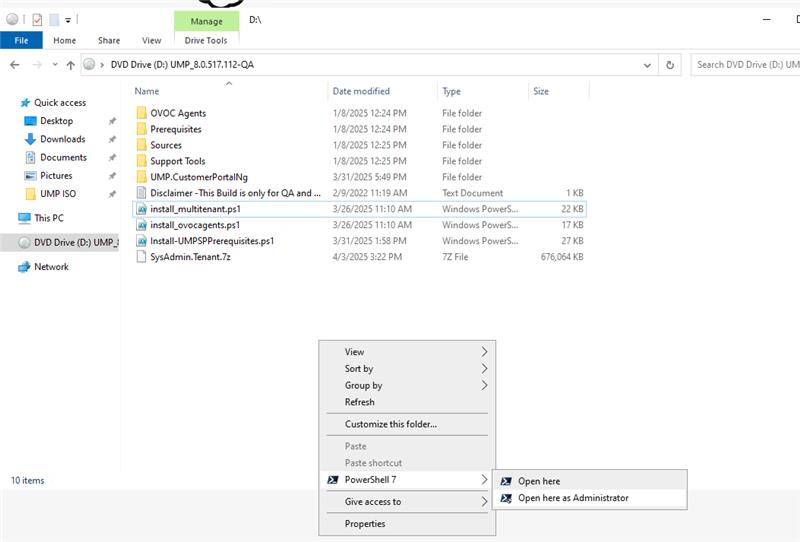
From Mounted drive, in Windows Explorer, open the installation directory, right-click the empty space and choose PowerShell 7 Open here as Administrator. |
|
5.
|
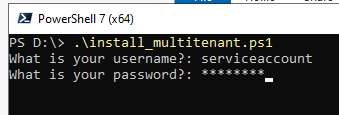
In the console type the following: |
.\install_multitenant.ps1
Do one of the following:
|
●
|
Add the optional parameters in the command line: |
-username <UMP-365 Service Account> -plainPassword <YourPassword>
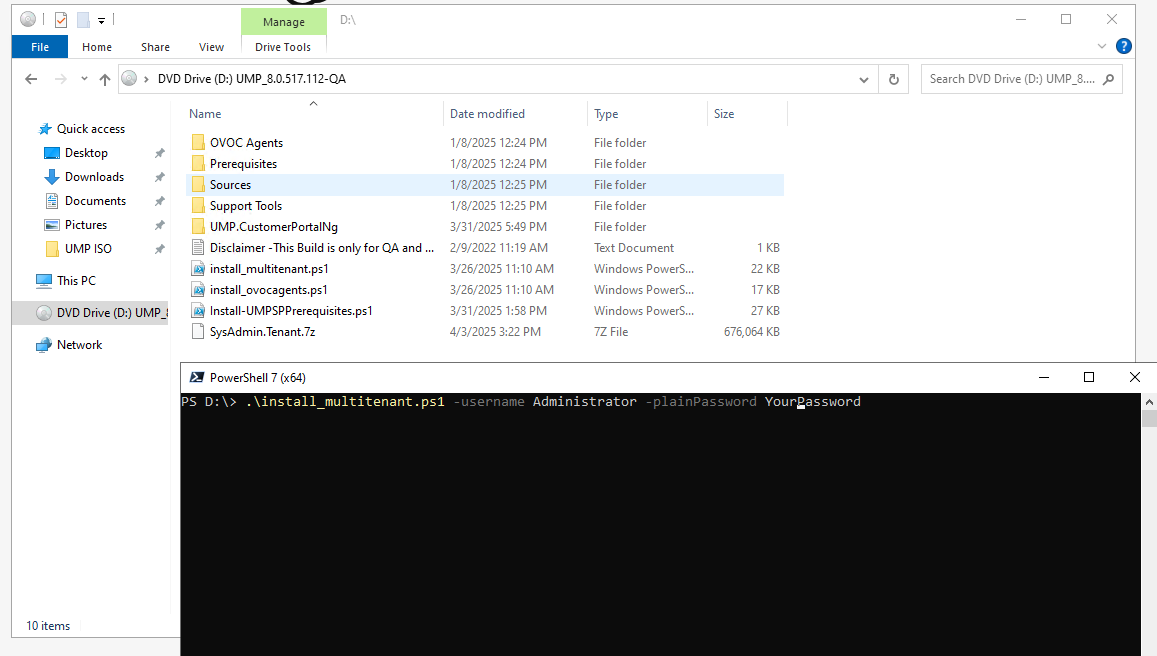
The installation process commences.